OpenWrt One Hardware Overview
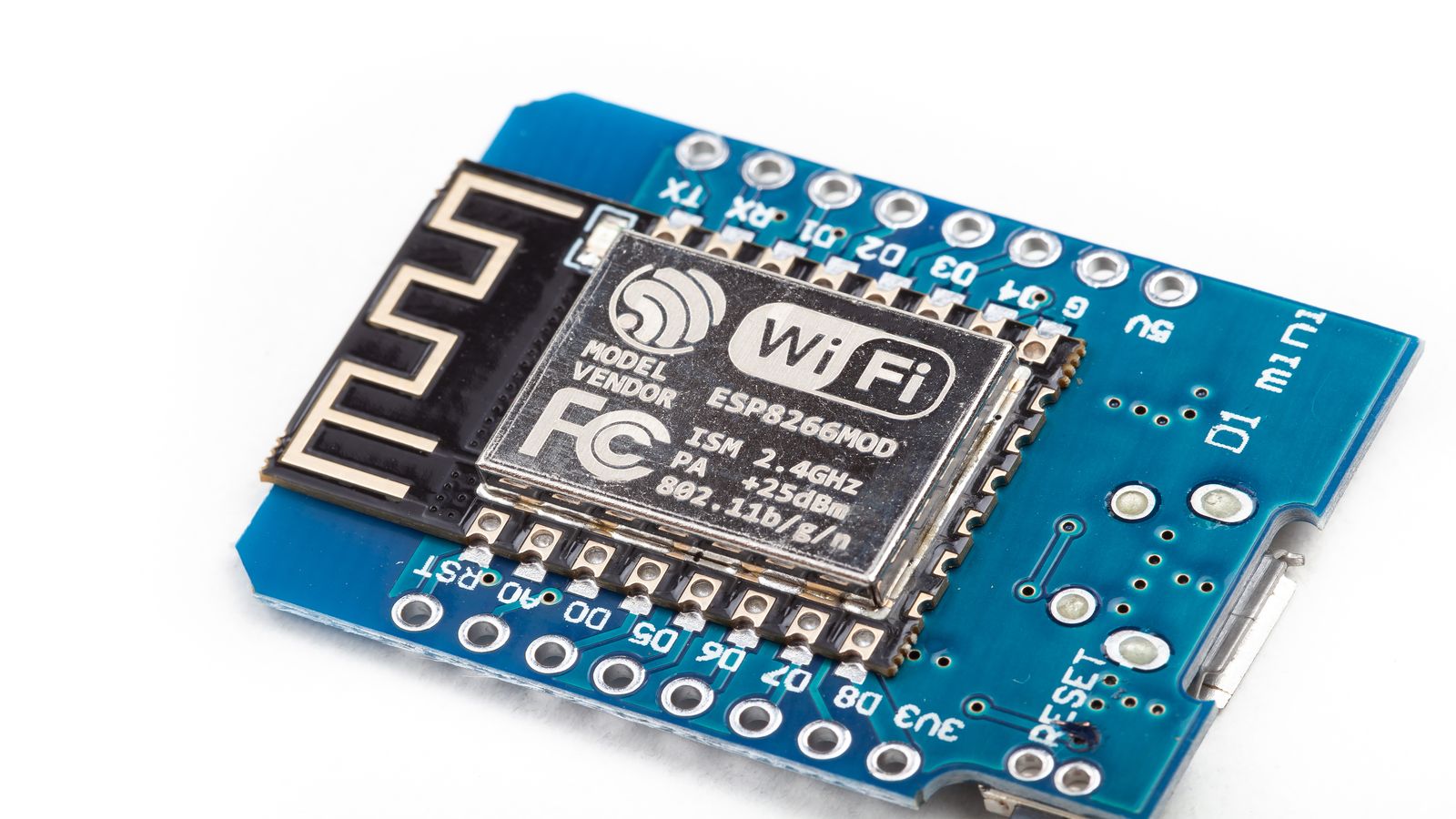
The OpenWrt One is a purpose-built router board designed by the OpenWrt project. Key specs that matter for this guide:
- SoC: MediaTek MT7981B (Filogic 820), dual-core ARM Cortex-A53 @ 1.3 GHz
- RAM: 1 GB DDR4
- Storage: 256 MB NAND + 128 MB NOR (dual firmware slots)
- Ethernet: 1× 2.5 GbE WAN, 1× 1 GbE LAN
- Wi-Fi: MediaTek MT7976C (Wi-Fi 6, 2×2 on both bands)
- USB: 1× USB-C (power + serial console), 1× USB 2.0 Type-A
- Serial console: Accessible via USB-C — no separate adapter needed
Initial Flash Procedure
The OpenWrt One ships with OpenWrt pre-installed. If you need to reflash (new release or recovery):
# Download the sysupgrade image from the official OpenWrt firmware selector
# URL: https://firmware-selector.openwrt.org/?target=mediatek/filogic
# Select "OpenWrt One" and download the sysupgrade.bin

# Verify the checksum
sha256sum -c openwrt-*-sysupgrade.bin.sha256sum
Flash via LuCI (if the router is running)
- Go to System → Backup / Flash Firmware
- Upload the sysupgrade image under Flash new firmware image
- Uncheck "Keep settings" if you want a clean install
- Click Flash image — the router reboots automatically
Flash via command line
# SCP the image to the router
scp openwrt-*-sysupgrade.bin root@192.168.1.1:/tmp/

# SSH into the router and flash
ssh root@192.168.1.1
sysupgrade -n /tmp/openwrt-*-sysupgrade.bin
# -n means do NOT keep settings (clean flash)First Login and Password Setup
# Connect Ethernet to the LAN port, get DHCP address
# Default router IP: 192.168.1.1
# Default credentials: root / (no password)

# SSH in and set a password immediately
ssh root@192.168.1.1
passwd
# Use a strong password — this is the admin account for the router
Access LuCI at http://192.168.1.1 and confirm login works with the new password.
VLAN Configuration: Trunk and Access Ports
The OpenWrt One has two physical Ethernet ports. For multi-VLAN setups, you need a managed switch between the router and your devices. The router's LAN port carries tagged (trunk) traffic to the switch.
# Create VLAN sub-interfaces on the LAN bridge
# This mirrors the VLAN plan from the segmentation guide

uci set network.vlan10=device
uci set network.vlan10.type='8021q'
uci set network.vlan10.ifname='br-lan'
uci set network.vlan10.vid='10'
uci set network.vlan10.name='br-lan.10'

uci set network.vlan20=device
uci set network.vlan20.type='8021q'
uci set network.vlan20.ifname='br-lan'
uci set network.vlan20.vid='20'
uci set network.vlan20.name='br-lan.20'

# Create interfaces
uci set network.iot=interface
uci set network.iot.proto='static'
uci set network.iot.device='br-lan.10'
uci set network.iot.ipaddr='192.168.10.1'
uci set network.iot.netmask='255.255.255.0'

uci set network.guest=interface
uci set network.guest.proto='static'
uci set network.guest.device='br-lan.20'
uci set network.guest.ipaddr='192.168.20.1'
uci set network.guest.netmask='255.255.255.0'

uci commit network
/etc/init.d/network restart
Configure DHCP for the new interfaces:
uci set dhcp.iot=dhcp
uci set dhcp.iot.interface='iot'
uci set dhcp.iot.start='100'
uci set dhcp.iot.limit='150'
uci set dhcp.iot.leasetime='12h'

uci set dhcp.guest=dhcp
uci set dhcp.guest.interface='guest'
uci set dhcp.guest.start='100'
uci set dhcp.guest.limit='150'
uci set dhcp.guest.leasetime='2h'

uci commit dhcp
/etc/init.d/dnsmasq restartWireGuard VPN Setup
# Install WireGuard
opkg update
opkg install wireguard-tools luci-proto-wireguard

# Generate keys
wg genkey | tee /etc/wireguard/private.key | wg pubkey > /etc/wireguard/public.key
chmod 600 /etc/wireguard/private.key

PRIVKEY=$(cat /etc/wireguard/private.key)

# Create the WireGuard interface
uci set network.wg0=interface
uci set network.wg0.proto='wireguard'
uci set network.wg0.private_key="$PRIVKEY"
uci set network.wg0.listen_port='51820'
uci add_list network.wg0.addresses='10.0.0.1/24'

# Add a peer (remote site)
uci add network wireguard_wg0
uci set network.@wireguard_wg0[-1].public_key='PEER_PUBLIC_KEY_HERE'
uci set network.@wireguard_wg0[-1].endpoint_host='203.0.113.20'
uci set network.@wireguard_wg0[-1].endpoint_port='51820'
uci set network.@wireguard_wg0[-1].persistent_keepalive='25'
uci add_list network.@wireguard_wg0[-1].allowed_ips='10.0.0.2/32'
uci add_list network.@wireguard_wg0[-1].allowed_ips='192.168.2.0/24'
uci set network.@wireguard_wg0[-1].route_allowed_ips='1'

uci commit network
/etc/init.d/network restart
For MTU tuning and throughput testing details specific to ARM SBCs, see the WireGuard on Banana Pi guide — the same principles apply, though the OpenWrt One's MT7981B handles crypto faster than the A20.
Add a firewall rule for the WireGuard UDP port:
uci set firewall.wg_rule=rule
uci set firewall.wg_rule.name='Allow-WireGuard'
uci set firewall.wg_rule.src='wan'
uci set firewall.wg_rule.dest_port='51820'
uci set firewall.wg_rule.proto='udp'
uci set firewall.wg_rule.target='ACCEPT'
uci commit firewall
/etc/init.d/firewall restart
DNS-over-TLS with Stubby
opkg install stubby

# Point stubby to Cloudflare and Quad9 DoT servers
uci set stubby.global.listen_address='127.0.0.1@5453'
uci set stubby.global.round_robin_upstreams='1'
uci commit stubby

# Redirect dnsmasq to use stubby
uci set dhcp.@dnsmasq[0].noresolv='1'
uci set dhcp.@dnsmasq[0].server='127.0.0.1#5453'
uci commit dhcp

/etc/init.d/stubby enable
/etc/init.d/stubby start
/etc/init.d/dnsmasq restart

# Verify
nslookup example.com 127.0.0.1
logread | grep stubby
Firmware Upgrade Procedure
- Download the latest sysupgrade image and verify its checksum
- Back up your configuration: System → Backup / Flash Firmware → Generate archive (or
sysupgrade -b /tmp/backup.tar.gz) - Flash the image with
sysupgrade /tmp/openwrt-*-sysupgrade.bin - After reboot, verify the new version:
cat /etc/openwrt_release - Test all VLANs, WireGuard, and DNS resolution
opkg update and reinstall wireguard-tools, stubby, and any other packages you added. Keep a list in /etc/config/installed-packages.txt for reference.
Recovery: Serial Console and Failsafe Mode
Serial console access
The OpenWrt One exposes a serial console through the USB-C port. Connect it to a computer and use a terminal program:
# Linux
screen /dev/ttyACM0 115200

# macOS
screen /dev/tty.usbmodem* 115200

# Windows — use PuTTY with the COM port shown in Device Manager, 115200 baud
Failsafe mode
- Power off the router
- Connect via serial console
- Power on and watch the boot messages
- Press f and Enter when you see "Press the [f] key and hit [enter] to enter failsafe mode"
- The router boots with a minimal configuration: IP 192.168.1.1, no firewall, no VLAN config
- From failsafe, you can mount the overlay and fix configuration:
mount_root
# Now you can edit /etc/config/* files to fix broken configuration
# Or wipe the overlay to factory-reset:
firstboot -y
reboot
Boot from NOR recovery image
If the NAND firmware is completely broken, the OpenWrt One can boot from its NOR flash recovery image. Hold the hardware reset button for 10+ seconds during power-on to trigger NOR boot. From the NOR image, you can reflash the NAND via sysupgrade.
Factory Reset
# Via command line (if you can SSH in)
firstboot -y && reboot

# Via LuCI: System → Backup / Flash Firmware → Perform reset

# Via failsafe mode (if you can't log in):
# Boot into failsafe (see above), then:
mount_root
firstboot -y
reboot
After factory reset, the router returns to default settings: IP 192.168.1.1, root with no password, no VLANs, no WireGuard. You'll need to reconfigure everything or restore from a backup archive.
Related Reading
- Network segmentation with VLANs on OpenWrt — detailed firewall zone rules for IoT, guest, and VPN isolation
- WireGuard on Banana Pi — VPN setup, MTU tuning, and throughput testing on ARM SBCs
- Hardening an SBC for the internet — SSH and firewall hardening (applies to any Linux device on the network)
- SBC image integrity — verifying firmware images before flashing
- Banana Pi product overview — companion SBC hardware for network projects