Diagnostic Overview
Random crashes on ARM SBCs almost always come from one of five causes: bad power, dying storage, thermal throttling, kernel bugs, or bad RAM. This checklist walks through each in order of likelihood. Work through it top to bottom — don't skip steps.
Step 1: Check Power Supply
Bad power is the #1 cause of random SBC crashes. Undervoltage causes memory corruption, storage errors, and reboots that look like kernel bugs.
Checklist
- Measure voltage at the board under load (not at the adapter):
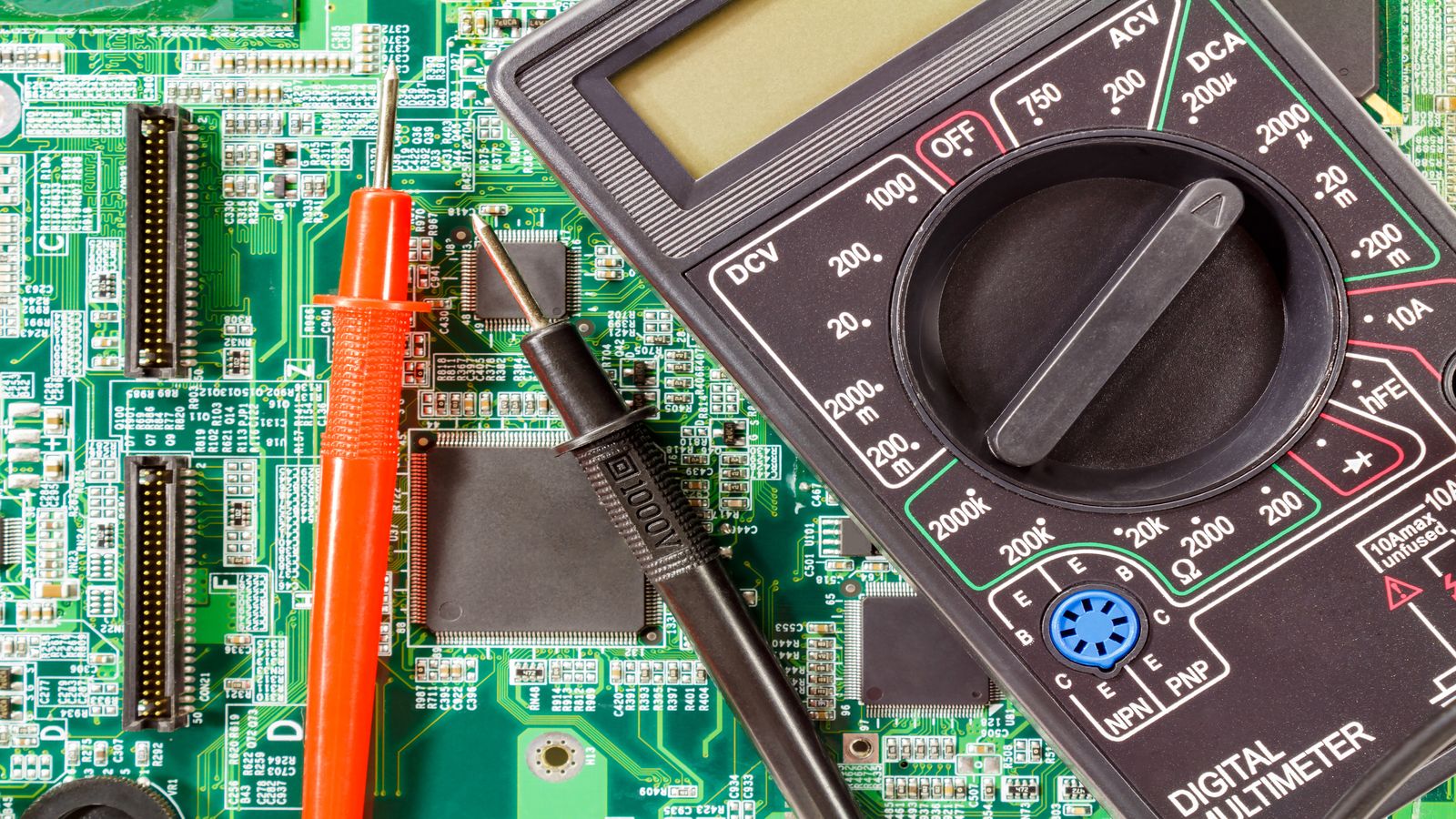
# Check kernel's voltage monitoring (if available) dmesg | grep -i "under.voltage\|undervolt\|brownout" # On some boards, check sysfs cat /sys/class/power_supply/*/voltage_now 2>/dev/null - Multimeter test: Measure across the 5V and GND pins on the GPIO header while the board is running with all peripherals connected. You need 4.75V minimum. Below 4.6V, expect instability.
- Check the power supply specs:
- Banana Pi Pro needs a solid 5V/2A supply minimum
- With SATA drive connected: 5V/3A recommended
- Cheap phone chargers drop voltage under load — don't use them
- Long or thin micro-USB cables cause voltage drop. Use short, thick cables or power via GPIO header pins
- Check for symptoms of power issues:
- Crashes happen more under load (compiling, disk I/O)
- Crashes happen when peripherals draw power (USB devices, WiFi activity)
- Board reboots without any kernel panic message
- SD card corruption occurs repeatedly even with new cards
Step 2: Check Storage Health
After power, storage is the next most common crash source. Dying SD cards cause filesystem corruption, read-only remounts, and kernel panics.
Checklist
# 1. Check dmesg for storage errors
dmesg | grep -iE "mmc|mmcblk|ata|I/O error|read.only|EXT4-fs error|f2fs"

# 2. Check if root went read-only
mount | grep "on / "
# If it shows "ro" — your storage had a write failure

# 3. Check SD card health register (if supported)
sudo apt install mmc-utils
sudo mmc extcsd read /dev/mmcblk0 2>/dev/null | grep -i "life"

# 4. Check filesystem integrity
# WARNING: Only run fsck on unmounted filesystems
# Boot from a different card and check the suspect card:
sudo fsck.ext4 -n /dev/sdX1  # -n = read-only check
# Or for F2FS:
sudo fsck.f2fs -n /dev/sdX1

# 5. Check SATA drive SMART data (if using SATA)
sudo apt install smartmontools
sudo smartctl -a /dev/sda
# Look for: Reallocated_Sector_Ct, Current_Pending_Sector, Offline_UncorrectableStep 3: Check Thermals
The Allwinner A20 throttles at 80°C and can become unstable above 90°C, especially without a heatsink in an enclosed case.
# Read current CPU temperature
cat /sys/class/thermal/thermal_zone0/temp
# Divide by 1000 for degrees Celsius (e.g., 65000 = 65°C)

# Check for thermal throttling events
dmesg | grep -i "thermal\|throttl\|trip"

# Monitor temperature over time
watch -n 2 "cat /sys/class/thermal/thermal_zone0/temp"

# Check CPU frequency (throttled boards run slower)
cat /sys/devices/system/cpu/cpu0/cpufreq/scaling_cur_freq
cat /sys/devices/system/cpu/cpu0/cpufreq/scaling_max_freq
# If current is much lower than max, the board is throttling
Thermal fixes
- Add a heatsink to the A20 SoC (a basic aluminium heatsink drops temps 10-15°C)
- Ensure airflow if the board is in an enclosure
- Reduce CPU frequency if the workload allows:
# Cap CPU at 912 MHz (default max is 1008 MHz)
echo 912000 | sudo tee /sys/devices/system/cpu/cpu0/cpufreq/scaling_max_freq
Step 4: Check Kernel Logs
If power, storage, and thermals check out, look for kernel-level problems.
# 1. Check for kernel oops or panics
dmesg | grep -iE "oops|panic|BUG|call trace|unable to handle"

# 2. Check for watchdog resets
dmesg | grep -i "watchdog"

# 3. Check for out-of-memory kills
dmesg | grep -i "oom\|out of memory\|killed process"

# 4. Check previous boot's log (if journald persists logs)
journalctl -b -1 | grep -iE "oops|panic|error|fail" | tail -30

# 5. Check for driver-specific errors
dmesg | grep -iE "sunxi|sun4i|sun7i|ahci|gmac|brcmfmac" | grep -iE "error|fail|timeout"- OOM kills — 1 GB RAM runs out fast. Check if a specific process is being killed and add zram or reduce workload.
- SATA timeout errors — Often a power issue (SATA drive not getting enough current), not a kernel bug.
- WiFi driver crashes — brcmfmac on AP6210 can crash under heavy load. See the AP6210 guide for firmware and driver workarounds.
Step 5: Test RAM
RAM failures cause the most bizarre symptoms — random crashes, data corruption, kernel panics at different locations each time. Test it.
# Install memtester
sudo apt install memtester

# Test 768 MB (leave some for the OS)
# This takes 30-60 minutes per pass
sudo memtester 768M 1

# For a more thorough test, run 3 passes:
sudo memtester 768M 3
If memtester reports any errors, the RAM is bad. On SBCs the RAM is soldered — you can't replace it. The board needs to be retired or used for a workload that stays within the working memory range.
Step 6: Serial Console for Boot Stalls
If the board doesn't produce HDMI output or network activity, you need a serial console to see what's happening. This is the only way to diagnose early boot failures.
What you need
- A USB-to-TTL serial adapter (3.3V — not 5V)
- Connect TX, RX, and GND to the Banana Pi Pro's UART0 header pins
- Terminal software (minicom, screen, or PuTTY at 115200 baud)
# Linux: connect with screen
screen /dev/ttyUSB0 115200

# Or minicom
minicom -b 115200 -D /dev/ttyUSB0
What to look for
| Serial output stops at... | Meaning | Action |
|---|---|---|
| No output at all | Board not powering on, or bootloader missing | Check power, re-flash SD card |
| U-Boot starts but can't load kernel | SD card read error or wrong image | Re-flash; try different card |
| "Starting kernel..." | Kernel starts but hangs immediately — usually DTB mismatch | Check board name in image; try different kernel |
| Kernel boots, then panic | Can't mount root filesystem | Check root= parameter, check storage |
| Init starts, then hangs | systemd or init problem | Boot with init=/bin/bash to bypass |
# Emergency boot bypass: at U-Boot prompt, set init=/bin/bash
# This drops you to a root shell without systemd
setenv bootargs ${bootargs} init=/bin/bash
boot
Decision Tree: What's Crashing My SBC?
- Crashes under load, reboots without panic? → Power supply. Measure voltage under load.
- Filesystem goes read-only, I/O errors in dmesg? → Dying SD card. Replace with endurance card.
- Crashes after running for hours, board is hot? → Thermal throttling. Add heatsink, check temps.
- Kernel panic with call trace? → Kernel bug or driver issue. Note the function name in the trace, check if a kernel update fixes it. See the kernel LTS guide for switching kernels.
- OOM killer messages in dmesg? → Out of memory. Reduce workload, add zram, or move services to a bigger board.
- Random corruption, different crash locations each time? → Bad RAM. Run memtester.
- Board doesn't boot at all? → Use serial console. Check power, re-flash SD card.
- "Boots sometimes" — works on some boots, fails on others? → Bad SD card or bad flash. Verify the image checksum and test the card. See our Debian 13 first-boot guide for verification steps.
After Diagnosis: Next Steps
| Diagnosis | Recommended Action | Reference |
|---|---|---|
| Power supply insufficient | Get a quality 5V/3A supply with short cable | — |
| SD card worn or defective | Replace with endurance card, reduce writes | SD card endurance guide |
| Thermal throttling | Add heatsink, improve airflow | — |
| Kernel bug | Switch to a different LTS kernel | Kernel LTS guide |
| Storage too slow/unreliable | Move root to SATA | SATA root guide |
| Filesystem corruption recurring | Consider F2FS for flash media | ext4 vs F2FS guide |
| Bad RAM | Retire or repurpose the board | — |