BPI-R4 Hardware Overview
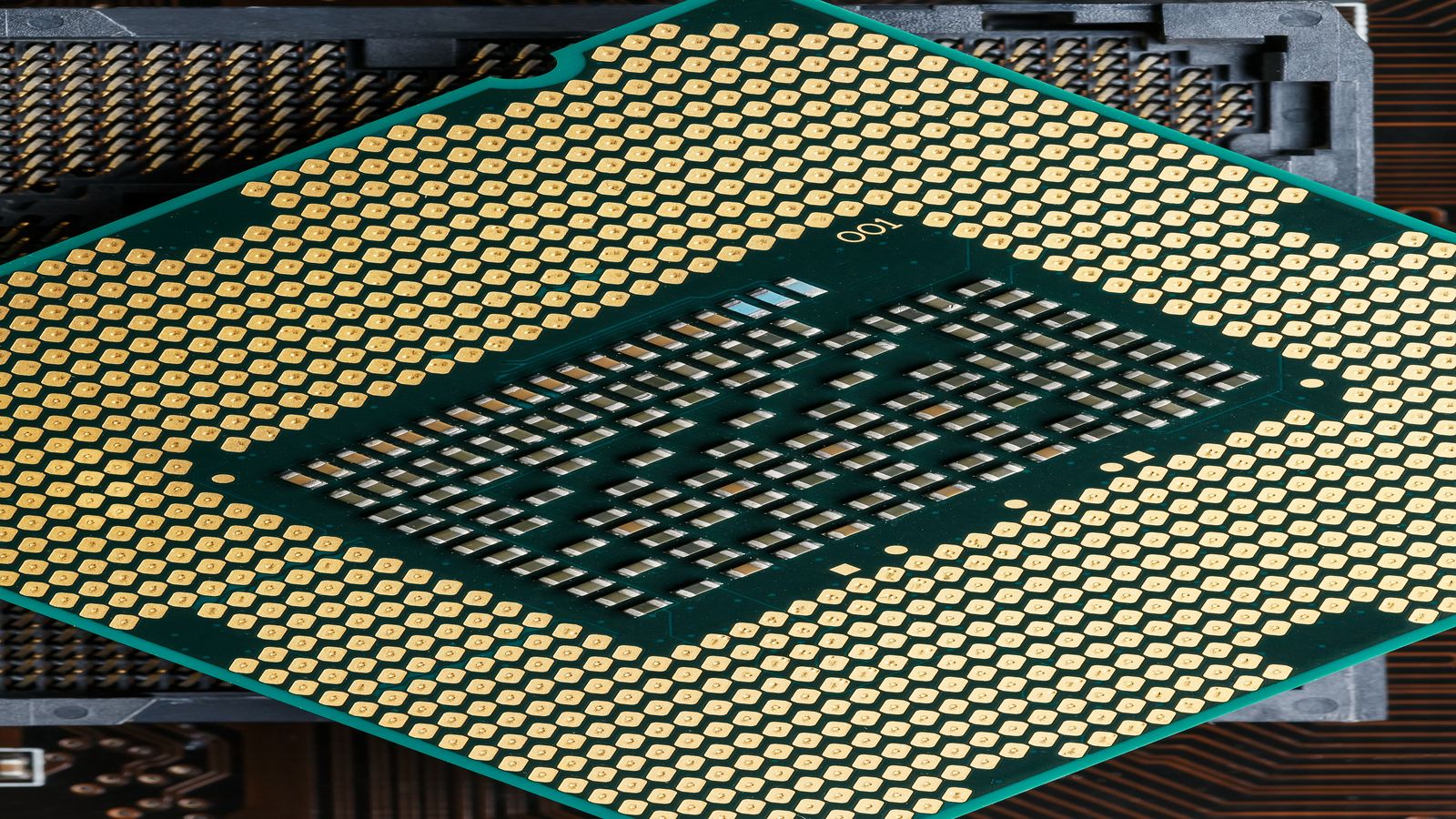
The Banana Pi BPI-R4 is a purpose-built router board. It uses the MediaTek Filogic 880 (MT7988A) SoC — a quad-core Arm Cortex-A73 at 1.8 GHz with hardware NAT offload and flow offloading built into the chip. View the BPI-R4. What matters for router use:
| Component | Specification |
|---|---|
| SoC | MediaTek Filogic 880 (MT7988A), 4× Cortex-A73 @ 1.8 GHz |
| RAM | 4 GB DDR4 |
| Storage | 8 GB eMMC + 128 MB SPI-NAND, SD slot, M.2 NVMe (PCIe 3.0 ×2) |
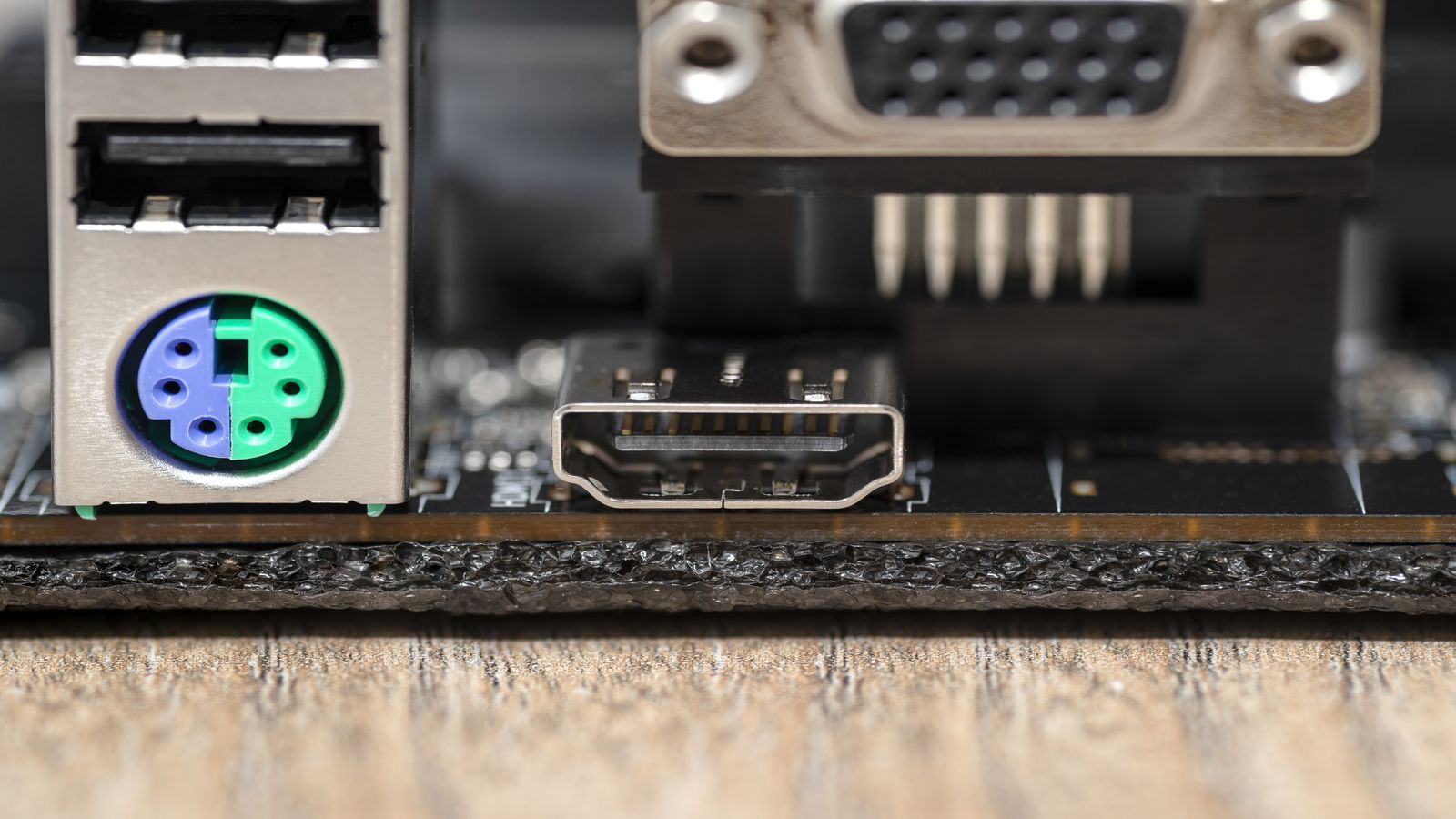
| Ethernet | 2× 10GbE SFP+ cages, 4× 1GbE RJ45 |
| Wi-Fi | M.2 expansion slots for MT7915/MT7916 Wi-Fi 6/6E or Wi-Fi 7 cards |
| Other | USB 3.2, serial console header (3.3 V), GPIO |
Downloading the Correct OpenWrt Image
The BPI-R4 has been in OpenWrt mainline since the 23.05 cycle. For 2026, use the latest stable release targeting mediatek/filogic:
# Download the factory image for first install (or sysupgrade for existing installs)
wget https://downloads.openwrt.org/releases/24.10.0/targets/mediatek/filogic/openwrt-24.10.0-mediatek-filogic-bananapi_bpi-r4-sdcard.img.gz
wget https://downloads.openwrt.org/releases/24.10.0/targets/mediatek/filogic/sha256sums

# Verify — never skip this step
grep bpi-r4-sdcard sha256sums
sha256sum openwrt-24.10.0-mediatek-filogic-bananapi_bpi-r4-sdcard.img.gzsdcard.img.gz for SD, emmc-preloader for eMMC. If you plan to move the root filesystem to NVMe later, start with the SD image for initial setup and migrate after — see the move-root-to-SATA guide for the general approach.
Flashing to eMMC or SD
SD card method (recommended for first setup)
# Decompress and flash
gunzip openwrt-24.10.0-mediatek-filogic-bananapi_bpi-r4-sdcard.img.gz
sudo dd if=openwrt-24.10.0-mediatek-filogic-bananapi_bpi-r4-sdcard.img of=/dev/sdX bs=4M status=progress conv=fsync
sudo sync
eMMC install from a running SD-based system
# From a working OpenWrt on SD, write the eMMC image directly
dd if=/tmp/openwrt-*-bpi-r4-emmc.img of=/dev/mmcblk0 bs=4M status=progress conv=fsync
sync
# Then power off, remove SD, boot from eMMC/dev/mmcblk0 erases everything on the eMMC. Make sure you're not writing to the SD card's block device by mistake. Confirm with lsblk first.
First Boot and LuCI Access
- Insert the flashed SD card, connect Ethernet to any of the four 1GbE ports
- Power on — serial console (115200 baud, 3.3 V) shows the full boot log
- OpenWrt defaults: LAN IP
192.168.1.1, no root password - From your PC:
http://192.168.1.1→ LuCI web interface - Set a root password immediately via LuCI or SSH
# SSH in and set password
ssh root@192.168.1.1
passwd
NVMe SSD Detection and Mounting
The BPI-R4 exposes a PCIe 3.0 ×2 M.2 slot. NVMe detection should be automatic on OpenWrt with kmod-nvme installed:
# Check if NVMe is detected
lsblk
ls /dev/nvme*

# If no devices appear, install the kernel module
opkg update
opkg install kmod-nvme
reboot
After reboot, format and mount:
# Partition and format
fdisk /dev/nvme0n1   # Create a single Linux partition
mkfs.ext4 /dev/nvme0n1p1

# Mount
mkdir -p /mnt/nvme
mount /dev/nvme0n1p1 /mnt/nvme

# Persist across reboots — add to /etc/fstab via UCI or manually
block detect | uci import fstab
uci set fstab.@mount[-1].enabled='1'
uci commit fstab10GbE SFP+ Module Compatibility and Bring-Up
The two SFP+ cages on the BPI-R4 are driven by the MT7988A's built-in 10GbE MAC/SerDes. Not every SFP+ module works out of the box.
Tested modules
| Module | Type | Status |
|---|---|---|
| 10Gtek 10GBASE-SR | Fibre (850 nm) | Works |
| FS.com 10GBASE-T (30 m) | Copper RJ45 | Works, runs warm |
| Mikrotik S+RJ10 | Copper RJ45 | Works |
| Ubiquiti UF-RJ45-10G | Copper RJ45 | Intermittent detection |
| Generic coded-as-Cisco SFP+ | Various | Often fails — vendor lock emulation |
# Check SFP+ interface status
ip link show eth1   # or eth2 for the second cage
ethtool eth1

# If the module is not detected, check dmesg
dmesg | grep -i sfp
dmesg | grep -i mt7530 # switch driver messagesBringing up SFP+ interfaces for WAN or LAN
# Assign SFP+ port as WAN (example — adapt to your network)
uci set network.wan.device='eth1'
uci set network.wan.proto='dhcp'
uci commit network
service network restart

# Verify link at 10 Gbps
ethtool eth1 | grep Speed
# Expected: Speed: 10000Mb/s
Basic Routing and Firewall Setup
OpenWrt's default config creates a LAN bridge (the four 1GbE ports) and a WAN interface. For the BPI-R4, you likely want one SFP+ port as WAN and the other as a LAN uplink or trunk.
# Confirm default zone layout
uci show firewall | grep zone

# Enable software flow offloading (hardware offload may also work on MT7988)
uci set firewall.@defaults[0].flow_offloading='1'
uci set firewall.@defaults[0].flow_offloading_hw='1'
uci commit firewall
service firewall restartflow_offloading_hw first and test with software offloading only.
For VLAN-based network segmentation, see the network segmentation guide for VLAN planning. The BPI-R4's MT7530 switch driver supports 802.1Q tagging on all ports.
Performance Validation with iperf3
# Install iperf3 on the BPI-R4
opkg update
opkg install iperf3

# Run server on the BPI-R4
iperf3 -s

# From a 10GbE-capable client
iperf3 -c 192.168.1.1 -t 30 -P 4   # 4 parallel streams, 30 seconds
Expected results with hardware flow offloading enabled:
| Scenario | Expected Throughput |
|---|---|
| LAN-to-LAN (1GbE → 1GbE) | 940-945 Mbps |
| SFP+ to SFP+ (direct, no NAT) | 9.2-9.4 Gbps |
| SFP+ WAN → LAN with NAT + HW offload | 8-9 Gbps |
| SFP+ WAN → LAN with NAT, SW offload only | 2-3 Gbps |
Common Issues and Recovery
| Symptom | Likely Cause | Fix |
|---|---|---|
| SFP+ module not detected | Incompatible module or power issue | Try a known-good module from the list above; check dmesg | grep sfp; verify 12 V/5 A PSU |
NVMe not showing in lsblk |
kmod-nvme not installed or bad seating |
Install kmod-nvme; reseat the M.2 card; check lspci for the PCIe device |
| Board doesn't boot from eMMC | SD card still inserted (takes priority) or bad eMMC flash | Remove SD card; re-flash eMMC from a working SD boot |
| Link at 1 Gbps instead of 10 Gbps | SFP+ module or cable negotiation issue | Check cable/DAC quality; force speed with ethtool -s eth1 speed 10000 |
| Random reboots under load | Overheating or insufficient power | Add a heatsink + active fan; use a 12 V/5 A PSU; check cat /sys/class/thermal/thermal_zone0/temp |
Brick recovery via serial console
If the board won't boot at all, connect a 3.3 V USB-to-serial adapter to the debug header. Interrupt U-Boot by pressing any key during the countdown, then:
# In U-Boot, boot from SD card manually
setenv bootargs 'console=ttyS0,115200 root=/dev/mmcblk1p2 rootwait'
mmc dev 1
load mmc 1:1 ${loadaddr} Image
load mmc 1:1 ${fdt_addr} dtb
booti ${loadaddr} - ${fdt_addr}Next Steps
- OpenWrt One setup guide — if you're comparing platforms before buying
- OpenWrt vs full Linux for routing — when a full Debian install makes more sense than OpenWrt
- WireGuard VPN setup — adding encrypted tunnels on top of this configuration. If you need a reliable VPN endpoint on the other end, Contabo VPS works well as a static WireGuard peer for under $5/month.
- Hardening guide — if this board faces the internet