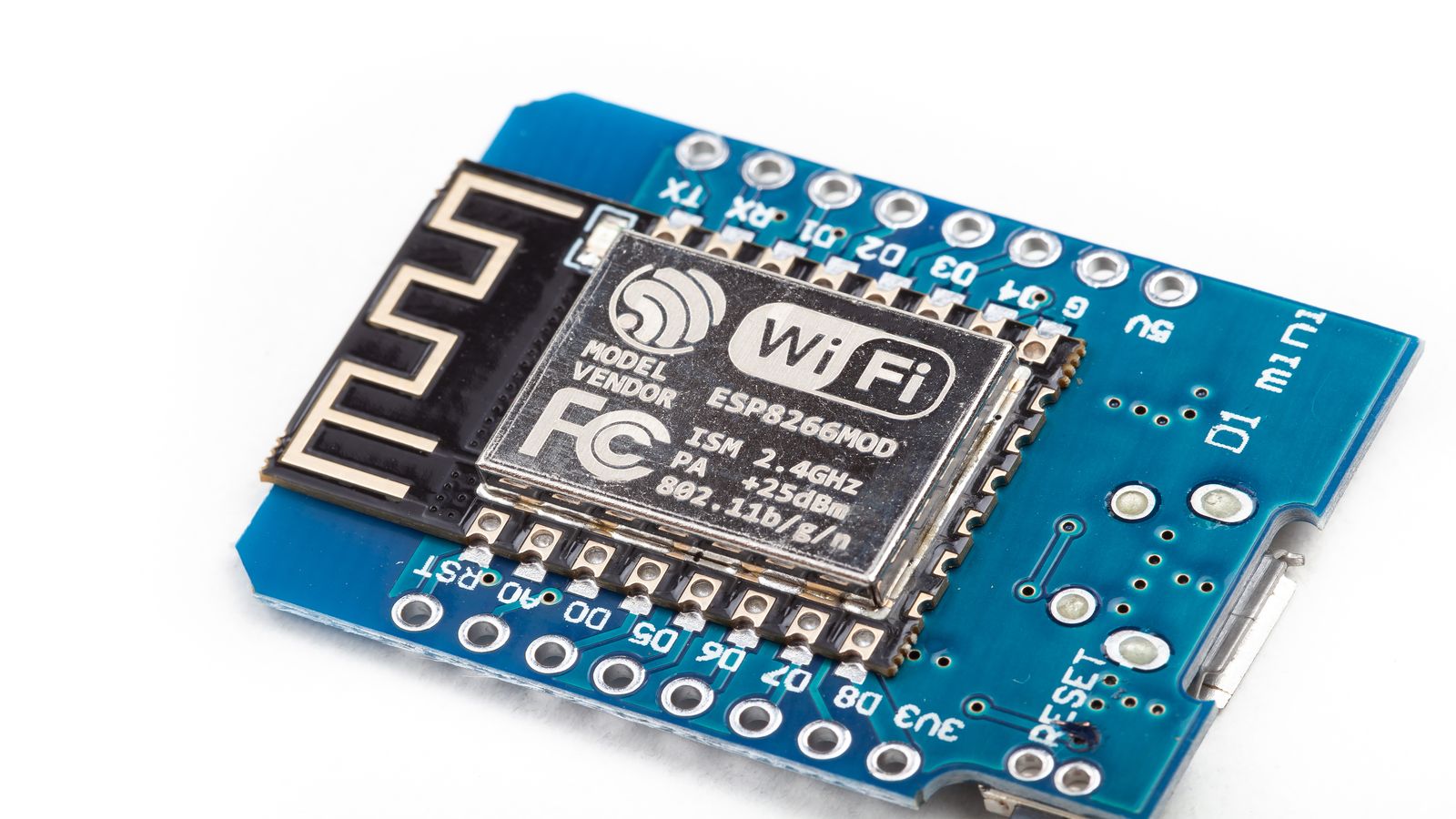
The AP6210 Situation in 2026
The Banana Pro ships with a Broadcom AP6210 (BCM43362 Wi-Fi + BCM20710 Bluetooth) module soldered to the board. This module works under Linux, but the firmware situation is complex: the driver is mainline (brcmfmac), but the firmware blob has to come from the right source and land in the right directory, or the module silently fails to initialise.
Debian 13 (Trixie) changes the firmware packaging layout compared to Debian 11/12. If you previously had a working Banana Pro Wi-Fi setup on Bullseye or Bookworm, it may break on upgrade. This guide covers the full setup from scratch.
Prerequisites
- Banana Pro board with the onboard AP6210 module — verify your board revision matches the Banana Pro specifications
- Debian 13 (Trixie) installed and booting — if you haven't installed it yet, follow the Debian 13 on Banana Pi install guide (the process is nearly identical for Banana Pro)
- Ethernet connection for initial setup — you need a working network to download firmware and packages before Wi-Fi works
- Your Wi-Fi network SSID and passphrase
Loading AP6210 Firmware on Debian 13
Step 1: Install the firmware package
# The firmware lives in the non-free-firmware repository
# Verify it's enabled:
grep -r "non-free-firmware" /etc/apt/sources.list /etc/apt/sources.list.d/

# If missing, add it:
sudo sed -i 's/main/main non-free-firmware/' /etc/apt/sources.list
sudo apt update

# Install the Broadcom firmware package
sudo apt install firmware-brcm80211
Step 2: Verify the firmware file exists
# The brcmfmac driver expects firmware here:
ls -la /lib/firmware/brcm/brcmfmac43362-sdio.bin

# And it needs a matching NVRAM file for the AP6210:
ls -la /lib/firmware/brcm/brcmfmac43362-sdio.txt

# If the NVRAM file is missing (common on Debian), create a symlink:
# The AP6210 NVRAM is sometimes named differently
sudo find /lib/firmware/brcm/ -name "*43362*" -ls
Step 3: Create the NVRAM config if missing
# If /lib/firmware/brcm/brcmfmac43362-sdio.txt is missing,
# create it with the AP6210 defaults:
cat <<'EOF' | sudo tee /lib/firmware/brcm/brcmfmac43362-sdio.txt
manfid=0x2d0
prodid=0x492
vendid=0x14e4
devid=0x4343
boardtype=0x0598
boardrev=0x1307
boardnum=2
macaddr=00:90:4c:c5:12:38
sromrev=3
boardflags=0x80201
wl0id=0x431b
nicvram_ver=4.7
ccode=ALL
regrev=0
aa2g=1
ag0=255
pa0b0=0x1136
pa0b1=0xFDF3
pa0b2=0xFF4D
pa0itssit=62
pa0maxpwr=66
rssismf2g=0xa
rssismc2g=0x3
rssisav2g=0x7
cckPwrOffset=4
opo=0
bwduppo=0
mcs2gpo0=0x4444
mcs2gpo1=0x4444
maxp2ga0=0x004E
cckdigfilttype=22
ofdmdigfilttype=1
extpagain2g=0
wl0gpio0=0xff
wl0gpio1=0xff
wl0gpio2=0xff
wl0gpio3=0xff
swctrlmap_2g=0x00080008,0x00100010,0x00080008,0x010a02,0x1ff
sd_gpout=0
sd_oobonly=1
EOF
Step 4: Reload the driver
# Unload and reload brcmfmac
sudo modprobe -r brcmfmac
sudo modprobe brcmfmac

# Check dmesg for successful firmware load
dmesg | tail -20 | grep -i brcm
# Expected: "brcmfmac: brcmf_fw_alloc_request: using brcm/brcmfmac43362-sdio for chip BCM43362/1"
# Followed by: "brcmfmac: brcmf_c_preinit_dcmds: Firmware: BCM43362/1 wl0: ..."

# Verify the wlan0 interface appeared
ip link show wlan0
No wlan0 after modprobe? Check
dmesg | grep -i error. The most common cause is a missing or wrong NVRAM file. The second most common is a power supply that cannot deliver enough current when the Wi-Fi radio activates.
Wi-Fi Configuration with WPA3
Using NetworkManager (recommended)
# Install NetworkManager if not present
sudo apt install network-manager

# Disable the old networking service to avoid conflicts
sudo systemctl disable networking
sudo systemctl enable NetworkManager

# Scan for networks
nmcli device wifi list

# Connect using WPA3 (SAE) if your access point supports it
nmcli device wifi connect "YourSSID" password "YourPassphrase" \
  wifi-sec.key-mgmt sae

# If your AP only supports WPA2:
nmcli device wifi connect "YourSSID" password "YourPassphrase"

# Verify connection
nmcli device status
ip addr show wlan0
ping -c 3 1.1.1.1
Making the connection persistent
# NetworkManager saves connections automatically
# Verify:
nmcli connection show
# Your Wi-Fi connection should appear with autoconnect=yes
Bluetooth Pairing and Audio
# Install Bluetooth stack
sudo apt install bluetooth bluez

# Start and enable the service
sudo systemctl enable bluetooth
sudo systemctl start bluetooth

# Check the Bluetooth adapter is detected
hciconfig
# Expected: hci0 with BD Address and UP RUNNING

# If hci0 is DOWN:
sudo hciconfig hci0 up

# Pair a device interactively
bluetoothctl
# In the bluetoothctl prompt:
power on
agent on
scan on
# Wait for your device to appear, then:
pair XX:XX:XX:XX:XX:XX
trust XX:XX:XX:XX:XX:XX
connect XX:XX:XX:XX:XX:XX
quit
Bluetooth audio: For A2DP audio output, install
pulseaudio-module-bluetooth or pipewire-pulse depending on your audio stack. On a headless server, Bluetooth is more commonly used for serial/RFCOMM data transfer than audio.
Stability Fixes for the AP6210
The AP6210 has known stability issues on SBCs, especially under sustained load. Apply these mitigations:
# 1. Disable Wi-Fi power management (prevents random disconnects)
sudo iw dev wlan0 set power_save off

# Make it persistent across reboots:
cat <<'EOF' | sudo tee /etc/NetworkManager/conf.d/no-wifi-powersave.conf
[connection]
wifi.powersave = 2
EOF

# 2. Set a conservative regulatory domain
sudo iw reg set GB
# Persist in /etc/default/crda:
echo 'REGDOMAIN=GB' | sudo tee /etc/default/crda

# 3. Monitor for firmware crashes
# The brcmfmac driver logs firmware crashes to dmesg:
dmesg | grep -i "brcmfmac.*firmware"
Ongoing Security Maintenance
Wi-Fi adds attack surface. Keep the system hardened:
# 1. Enable automatic security updates
sudo apt install unattended-upgrades
sudo dpkg-reconfigure -plow unattended-upgrades

# 2. Disable unused services
# If you don't need Bluetooth:
sudo systemctl disable bluetooth

# 3. Check for open ports
sudo ss -tulpn

# 4. Keep firmware updated
sudo apt update && sudo apt upgrade

# 5. Monitor auth logs for suspicious activity
sudo journalctl -u sshd --since "24 hours ago" | grep -i failed
WPA3 recommendation: If your access point supports WPA3 (SAE), use it. WPA2-PSK is still acceptable for home networks, but WPA3 eliminates offline dictionary attacks against the handshake.
Failure Modes and Recovery
Wi-Fi disconnects randomly
- Check
dmesg | grep -i brcmfor firmware crash messages - Verify power management is off:
iw dev wlan0 get power_save - Try a different Wi-Fi channel on your access point (channels 1, 6, 11 for 2.4 GHz)
- Check the 5V supply with a multimeter — the AP6210 draws extra current when transmitting
wlan0 does not appear at all
- Check
lsmod | grep brcmfmac— driver must be loaded - Check
dmesg | grep firmware— firmware file must be found and loaded - Verify the NVRAM file exists:
ls /lib/firmware/brcm/brcmfmac43362-sdio.txt - As a last resort, try the firmware from the Armbian firmware repository
Bluetooth won't pair
- Ensure
hciconfig hci0shows UP RUNNING - Check for rfkill blocks:
rfkill list - If blocked:
rfkill unblock bluetooth
Related Reading
- Banana Pro product overview — hardware specifications and connectivity
- Debian 13 on Banana Pi install guide — base Debian 13 installation procedure for the A20 platform
- Secure cold-storage vault with Banana Pi — encryption and backup project using related hardware
- LeMaker downloads hub — official images and utilities